For parents starting a first allowance with a weekly chore chart
A chore chart with money: the week's allowance, added up for you
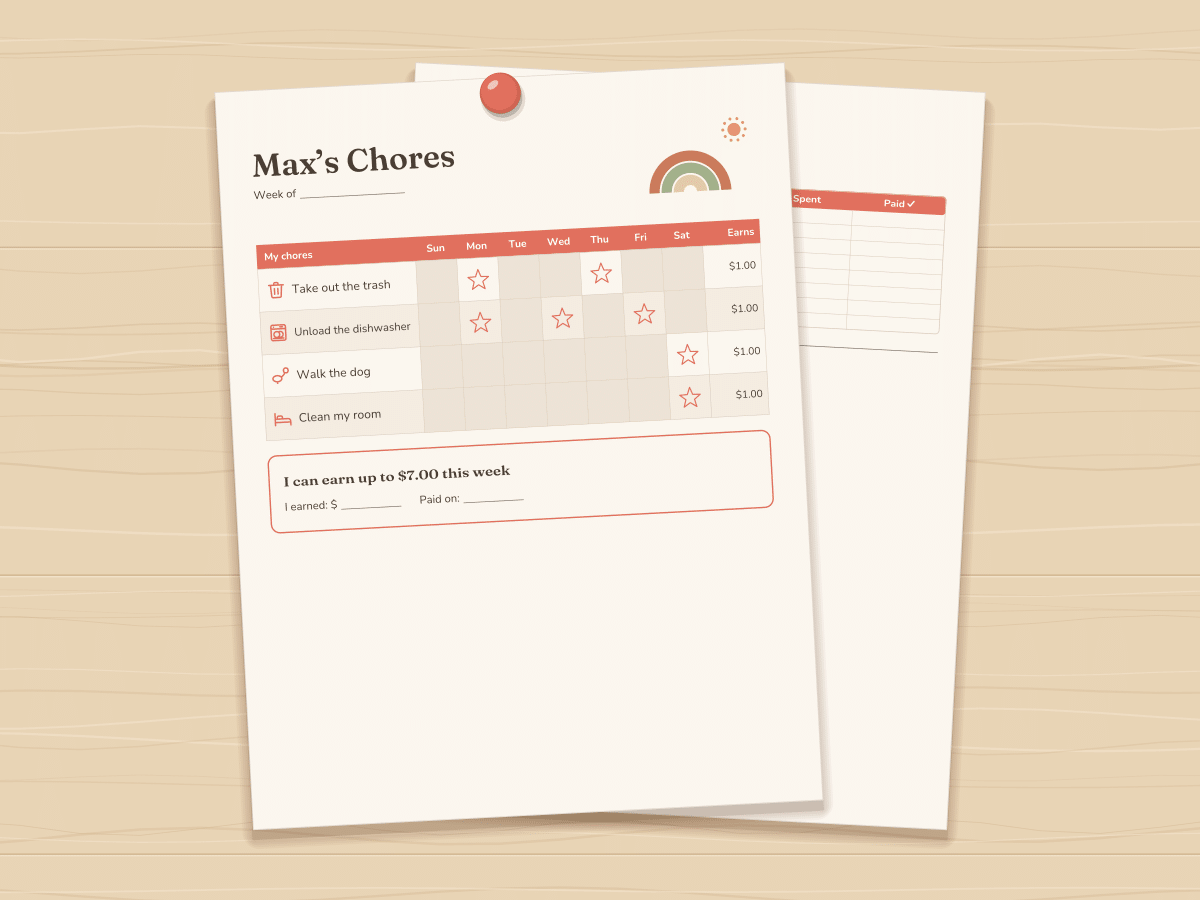
Put a dollar amount next to each chore, and the chart multiplies it by that chore's days and prints the most your child can earn this week. You pick the amounts and the chart does the math.
Page 1 of 5
Family page
Start with your kids’ names
Max
Family Pack · $12
How the money column works
Turn on the money column, type an amount next to a chore, and the chart prints that amount in an Earns column at the end of the row.
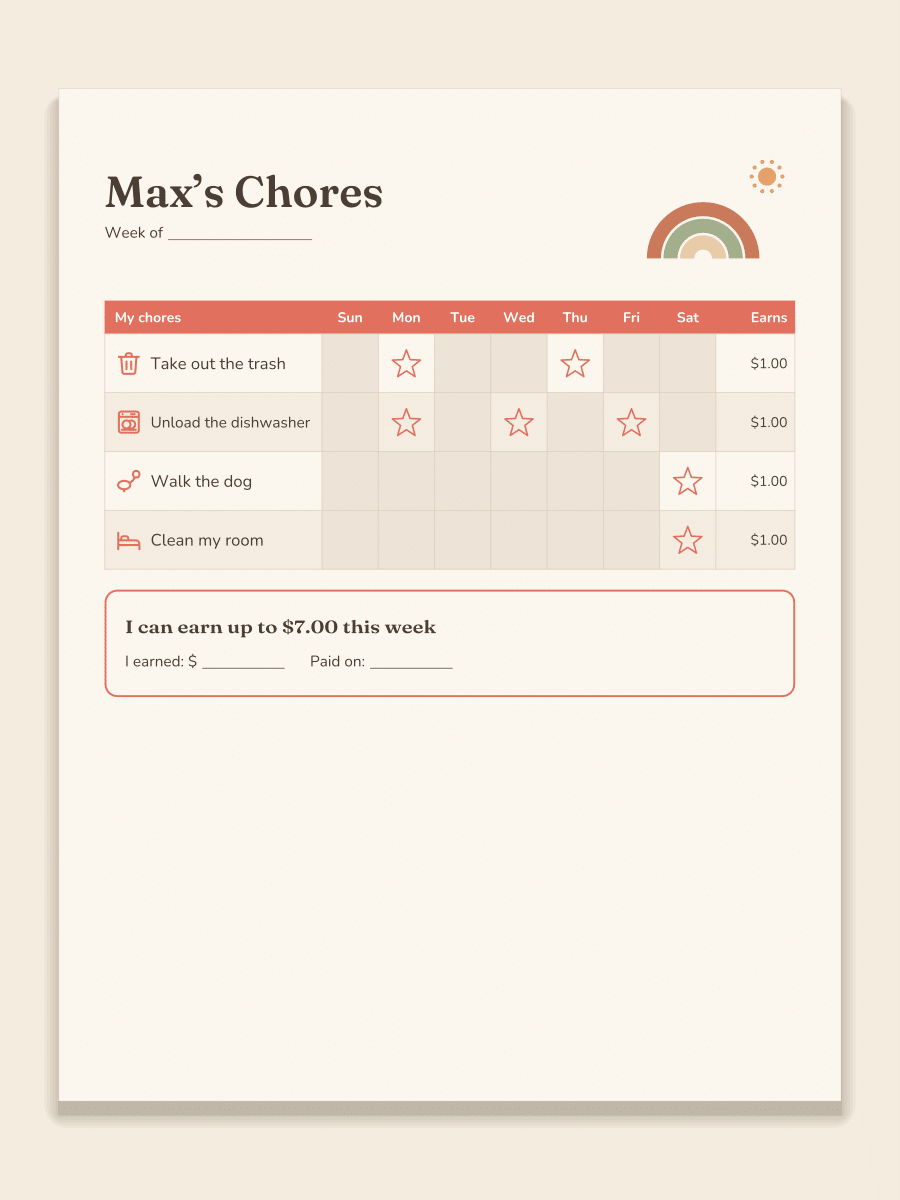
The amount counts once for every day the chore is on, so a chore on Monday and Thursday counts twice. The reward box at the bottom adds up every row and reads "I can earn up to $7.00 this week".
Under that line are two blanks to fill in by hand: "I earned: $" and "Paid on:". A chore without an amount keeps its stars and an empty Earns cell, so paid and unpaid jobs can share one page.
The math behind $7.00
Max can earn up to $7.00 this week because the four chores on the page come up 7 times in total, at $1.00 each time.
| Chore | Days | Times | Each time | Subtotal |
|---|---|---|---|---|
| Take out the trash | Mon, Thu | 2 | $1.00 | $2.00 |
| Unload the dishwasher | Mon, Wed, Fri | 3 | $1.00 | $3.00 |
| Walk the dog | Sat | 1 | $1.00 | $1.00 |
| Clean my room | Sat | 1 | $1.00 | $1.00 |
| Most Max can earn this week | 7 | $7.00 | ||
Change an amount or a day in the form and the total in the preview changes with it.
With rotation on, a shared job brings its amount to whoever has it that week, so a total can change from week to week. The tracker then shows a range instead of one number.
The allowance tracker page
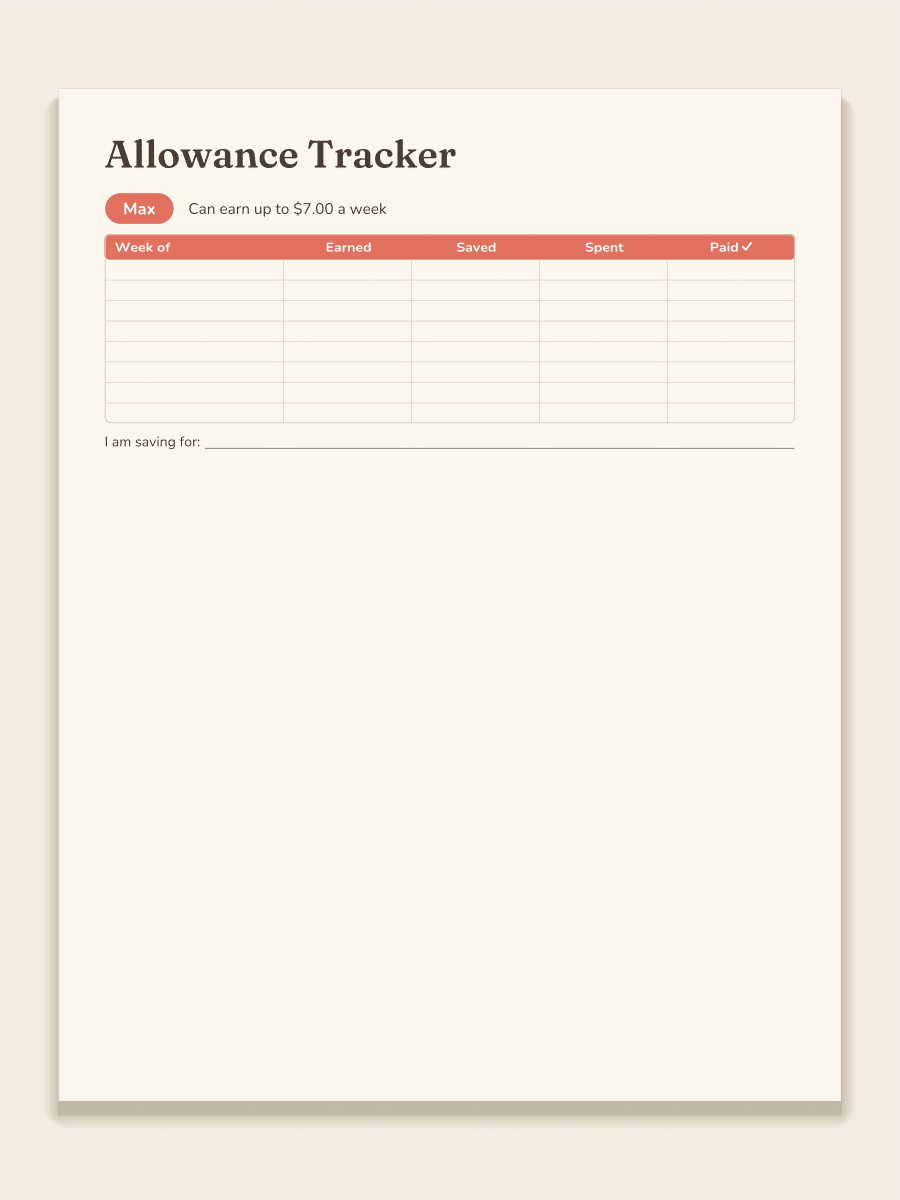
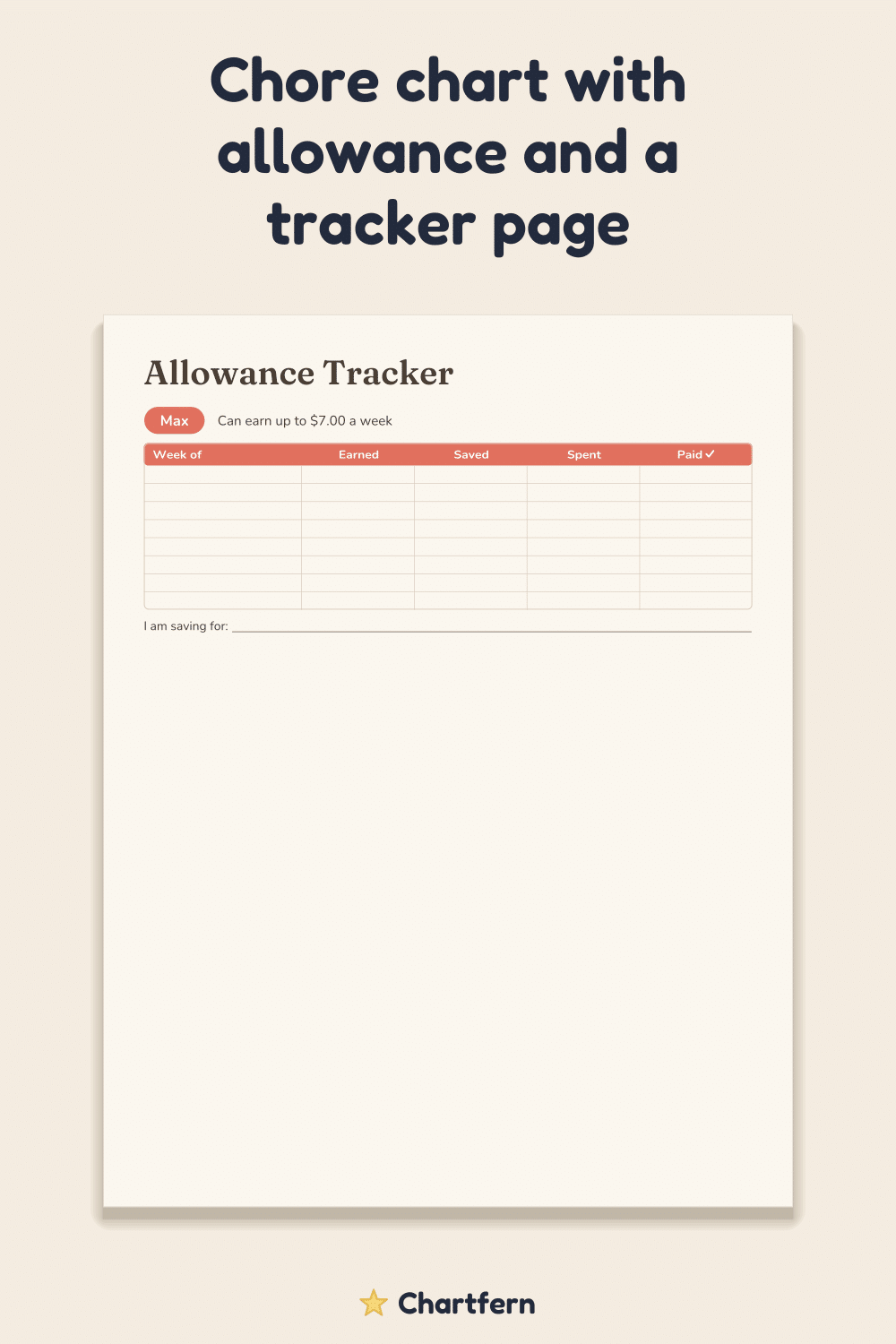
The allowance tracker is a separate page with eight rows, one per week, for writing down what your child earned, saved and spent.
Each child gets a block with their name and the most they can earn in a week. The table has columns for Week of, Earned, Saved, Spent and Paid, and under it is the line "I am saving for:".
One tracker page holds up to three children; a fourth child with money on starts a second page.
The tracker comes with the Family Pack and the Family Year Bundle. The Single Chart keeps the money column on the chart itself and has no tracker page.
Three ways families handle chore money
The chart can print three setups: money per chore, one flat amount for a full week, or no money and a goal instead.
Money per chore
Each chore gets its own amount, and a job that comes up more often counts more often. This is the setup in Max's example.
A flat amount for a full chart
Leave the amounts empty and write the weekly allowance as the goal. The chart counts the stars for a full week, and the money is paid when all of them are filled.
No money, a goal instead
Keep the money column off and write a goal such as "Friday movie pick". The stars count toward it.
Each child can have a different setup on the same family chart.
How much allowance for chores?
You decide; the chart adds it up.
Chartfern does not suggest amounts, by age or otherwise. Type the amount you picked for each chore and check the total in the preview before you print.
The chores for ages 9 to 12, with their default days, have their own page:
Questions parents ask
Does it add up the allowance?
If you turn on the money column and put an amount on a chore, the chart multiplies it by the number of days and prints the most your child can earn that week.
What if I spelled a name wrong?
For 48 hours after your purchase you can change names and chores from your download page for free. With the Family Year Bundle you can change anything for 12 months.
Can I get a refund?
Because the files are made for you and delivered at once, we do not refund after download. If a file is faulty, write to us and we fix it or refund you.
Save it for later
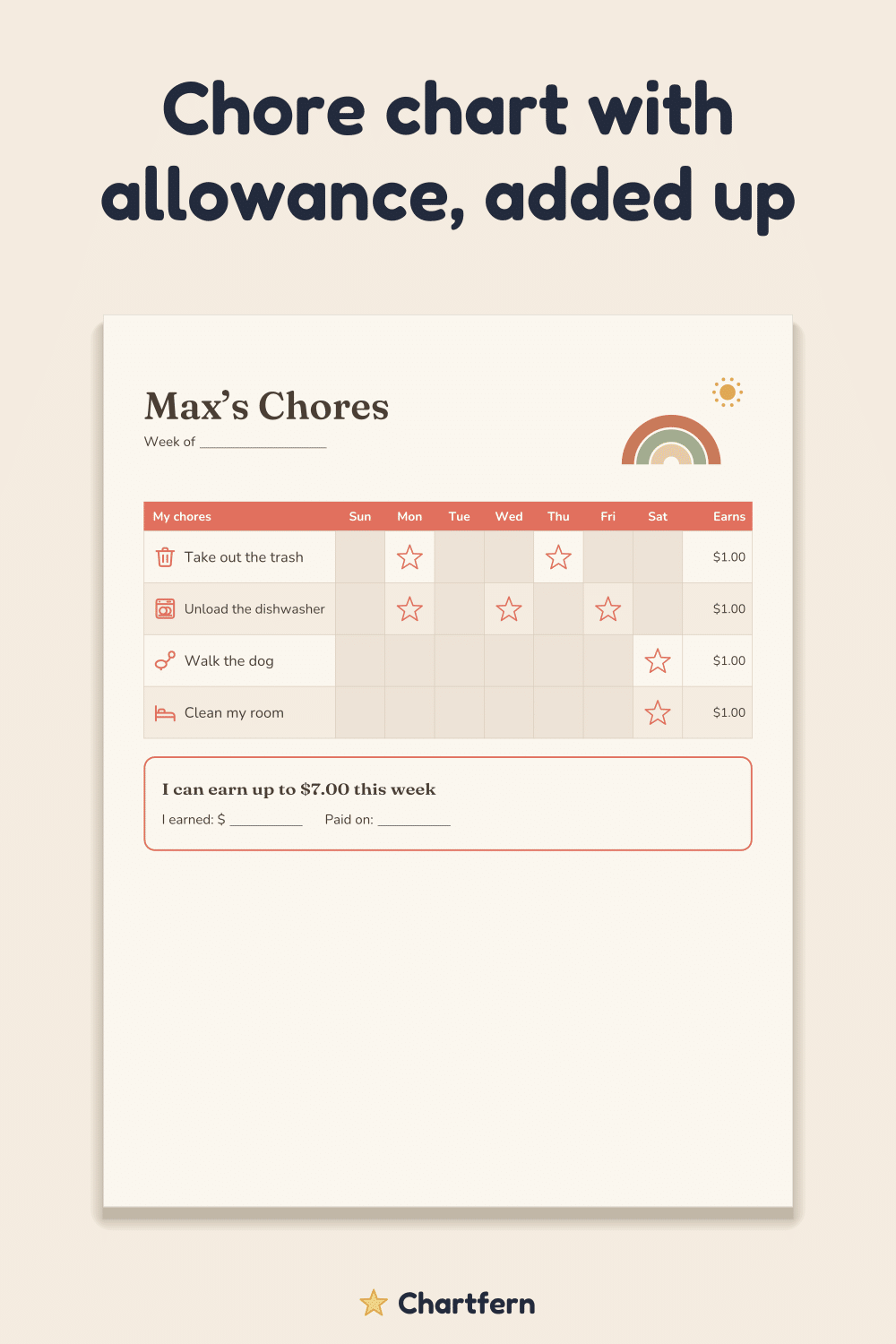
Two tall pictures of this chart, sized for a Pinterest board.
Put your own amounts on the chart
Start from Max's example, change the name and chores, and type your own amount for each job. The preview shows the total before you pay.
Make my chart